

Generating an invoice is an important part of running a business, freelancing, or providing professional services. A well-prepared invoice tells your customer exactly what they are paying for, how much they owe, and when payment is expected. It also creates a useful record of the transaction, making it easier to monitor outstanding payments, organize business expenses, and maintain accurate financial records.
You do not need expensive accounting software to generate a professional invoice. A document editor, spreadsheet, invoice template, or online invoice generator can handle many everyday billing situations. The important part is knowing what information to include, how to calculate the total correctly, and how to send the document in a format your customer can process.
In this guide, you will learn how to generate an invoice from scratch, understand the information every invoice should contain, calculate taxes and discounts, and create an invoice for different types of work. You will also see a complete invoice example, learn how to correct common billing mistakes, and discover practical ways to reduce payment delays.
What Does It Mean to Generate an Invoice?

To generate an invoice means to create a document requesting payment from a customer for products supplied or services provided. The document identifies the seller and customer, describes the transaction, lists the charges, and explains how and when payment should be made.
An invoice is generally issued after a product has been delivered, a service has been completed, or an agreed billing milestone has been reached. However, businesses may also invoice deposits, advance payments, recurring services, or other amounts according to their contracts and applicable requirements.
For example, imagine you are a freelance graphic designer who has completed a logo design project for a client. You prepare an invoice containing:
- Your name or business information.
- Your client’s name and billing details.
- A description of the logo design service.
- The agreed project fee.
- Any applicable taxes or discounts.
- The invoice date and payment deadline.
- Your accepted payment methods.
You then send the invoice to your client so they can review the charges and arrange payment.
An invoice serves more than one purpose. It acts as a payment request, helps both parties understand the transaction, and provides a reference for bookkeeping and payment tracking.
Important: An invoice is not automatically proof that payment has been received. If the customer pays, you may also need to provide a receipt or another appropriate payment confirmation.
What Information Should an Invoice Include?
Before generating an invoice, collect the information your customer needs to identify the transaction and process the payment.
A professional invoice generally contains the following elements:
| Invoice element | What to include | Why it matters |
| Seller information | Business or professional name, address, and contact details | Identifies who issued the invoice |
| Customer information | Customer’s name, business name, and billing address | Identifies who is being billed |
| Invoice number | A unique reference number | Helps track and retrieve invoices |
| Invoice date | Date the invoice was issued | Establishes when billing took place |
| Supply or service date | Date goods or services were provided, when relevant | Identifies the transaction period |
| Due date | Date payment is expected | Clarifies the payment deadline |
| Description | Products supplied or services completed | Explains what the customer is paying for |
| Quantity and rate | Number of items, hours, or units and their prices | Makes individual charges transparent |
| Subtotal | Total before applicable adjustments | Shows the original charges |
| Discounts and taxes | Relevant discounts, taxes, and other adjustments | Explains how the final amount was calculated |
| Total due | Final amount payable | Shows what the customer owes |
| Payment instructions | Bank transfer details, payment link, or accepted methods | Explains how to pay |
These are common invoicing elements, not a universal legal checklist. Requirements depend on the country, business structure, tax registration, and type of transaction.
For example, UK government guidance specifies information such as a unique identification number, seller and customer details, descriptions, dates, amounts, and VAT information where applicable. Some businesses must also provide additional particulars on their VAT invoices.
1. Business Name and Contact Information
Start by identifying yourself or your business.
Include the appropriate details:
- Registered business name or trading name.
- Business address.
- Professional email address.
- Contact telephone number.
- Relevant business registration or tax identification details, where required.
If you operate as a freelancer or sole trader, use the business and personal details required under the rules applicable to your circumstances.
Check that your contact information is current. Customers should be able to reach you if they have questions about a charge, payment deadline, or service description.
2. Customer or Client Information
The invoice must clearly identify the person or business responsible for payment.
Depending on the transaction, include:
- Customer’s full name.
- Company or organization name.
- Billing address.
- Email address, if useful for communication.
- Relevant tax identification details, when required.
- Purchase order number, if the customer has supplied one.
For corporate customers, confirm the correct legal entity and billing department before issuing the document.
A common mistake is sending an invoice to the employee who requested the work rather than the department responsible for processing payments. Confirming the correct recipient can prevent unnecessary delays.
3. A Unique Invoice Number
Every invoice should have a unique reference number that makes it easy to identify and retrieve.
For example, you could use a simple sequential system:
- INV-001
- INV-002
- INV-003
- INV-004
Alternatively, use a date-based format:
- INV-2026-001
- INV-2026-002
- INV-2026-003
Choose a format that is easy to maintain and apply consistently.
Avoid reusing invoice numbers, even when an invoice is cancelled or contains a mistake. Keep a record of the original document and its status so your financial records remain understandable.
4. Invoice Date, Supply Date, and Due Date
These dates serve different purposes.
- Invoice date: When the invoice is issued.
- Supply date: When the goods were delivered, or services were provided, if relevant.
- Due date: When the customer is expected to pay.
For example:
| Detail | Example |
| Invoice date | October 31, 2026 |
| Service date | October 28, 2026 |
| Payment terms | Net 15 |
| Due date | November 15, 2026 |
Net 15 generally means payment is due within 15 days under the agreed payment terms. Make sure the actual due date follows the contract and applicable rules.
Displaying a specific deadline is particularly helpful because customers do not have to calculate the payment date themselves.
5. A Clear Description of Products or Services
Explain exactly what the customer is paying for.
Avoid vague descriptions that leave the recipient guessing.
| Weak description | Better description |
| Design work | Logo design and three social media graphics |
| Consulting | Business strategy consultation, 2 hours |
| Writing | Website homepage copy, approximately 1,000 words |
| Products | Five wireless keyboards, Model KB-204 |
| Maintenance | Monthly website maintenance for October 2026 |
If the project involves several deliverables, list them separately.
Specific descriptions help customers verify the charges against their purchase orders, contracts, or completed work. They also make it easier to resolve billing questions later.
6. Prices, Discounts, Taxes, and Total Amount
Your invoice should explain how the final amount was calculated.
Include the relevant details:
- Quantity of products or hours worked.
- Unit price or hourly rate.
- Total for each line item.
- Subtotal.
- Applicable discounts.
- Taxes, where required.
- Additional agreed fees.
- Final amount payable.
For example, if you provide three services at different prices, show each service separately rather than combining everything into one unexplained charge.
The customer should be able to check the calculation without contacting you for clarification.
Remember that tax treatment depends on the applicable jurisdiction and transaction. Do not automatically add a tax percentage simply because another business uses it.
7. Payment Methods and Instructions
Tell your customer how to pay.
Depending on your business, you might accept:
- Bank transfers.
- Debit or credit card payments.
- Online payment links.
- Approved digital payment services.
- Cheques, where applicable.
For bank transfers, include the correct account name and relevant banking details. For payment links, verify that the link works before sending the invoice.
You can also ask customers to use the invoice number as their payment reference. This makes it easier to match incoming payments to the correct transaction.
How to Generate an Invoice Step by Step
You can create an invoice using a document editor, spreadsheet, template, online invoice generator, or accounting application. The following process works for most straightforward business transactions.
Step 1: Collect the Necessary Information
Before creating the document, gather your business details and the customer’s billing information.
Confirm:
- What products or services were supplied.
- The agreed price.
- The quantity or hours involved.
- Any additional charges or expenses.
- Whether taxes apply.
- The agreed payment deadline.
- Any customer-specific invoicing requirements.
If the work was completed under a contract, purchase order, or written agreement, refer to it before preparing the invoice.
For example, a client may have approved a project worth $1,000 but agreed to pay 50% upfront and the remaining 50% after completion. Your invoice should reflect the correct payment stage rather than automatically charging the full amount twice.
Step 2: Choose an Invoice Creation Method
Select a method that suits the number and complexity of your invoices.
| Method | Best suited for | Main consideration |
| Word processor | Occasional, simple invoices | Calculations are usually manual |
| Spreadsheet | Itemized invoices and calculations | Formulas need to be checked |
| PDF template | Consistent, straightforward billing | Some fields may require manual editing |
| Online invoice generator | Quick invoice creation | Features and tax support vary |
| Accounting software | Regular or complex invoicing | May require setup or a subscription |
If you issue only a few invoices each month, a simple template or online generator may be sufficient.
If you manage numerous clients, recurring payments, inventory, or complicated tax records, dedicated accounting software may be more appropriate.
The best method is the one that makes your invoicing process accurate, consistent, and manageable.
Step 3: Create the Invoice Header
Place the word INVOICE prominently at the top of the document.
Below it, add your business name and contact information.
Then include the reference details:
- Invoice number.
- Invoice date.
- Supply date, if relevant.
- Payment due date.
- Purchase order or project reference, if applicable.
Keep the header organized. Customers should be able to identify the document and its payment deadline immediately.
Step 4: Add the Customer’s Billing Details
Enter the customer’s correct name and billing address.
If you are invoicing a company, use the legal or billing name requested by its finance department.
Double-check spelling, addresses, and relevant identification numbers. Even a small administrative mistake can cause problems when a business processes invoices through an internal accounting system.
Step 5: List Products or Services Separately
Create an itemized section showing what you supplied or completed.
For each line, include a description, quantity, unit price, and line total.
For example:
| Description | Quantity | Unit price | Amount |
| Website homepage design | 1 | $450 | $450 |
| Landing page design | 2 | $150 | $300 |
| Content formatting | 3 hours | $40 | $120 |
| Subtotal | $870 |
The calculation is straightforward:
Line total = Quantity × Unit price
This structure is more transparent than charging a customer $870 without explaining which services make up the amount.
Step 6: Calculate Discounts, Taxes, and the Final Amount
After listing your charges, calculate the subtotal.
Then apply any agreed discounts, applicable taxes, and additional fees.
A general calculation is:
Total Due = Subtotal − Discounts + Applicable Taxes + Fees
Consider this example:
| Calculation | Amount |
| Subtotal | $870.00 |
| Discount (5%) | -$43.50 |
| Taxable amount | $826.50 |
| Example tax (10%) | $82.65 |
| Total amount due | $909.15 |
The 10% tax rate is hypothetical and used only to demonstrate the calculation. Actual tax rates and the order in which discounts and taxes are applied depend on the applicable tax rules.
If a discount is applied before tax in this example, the calculation is:
- $870.00 − $43.50 = $826.50
- $826.50 × 10% = $82.65
- $826.50 + $82.65 = $909.15
Do not assume that every jurisdiction uses the same calculation method. Verify the correct tax treatment for your transaction.
Step 7: Add Payment Terms and Instructions
State when and how the customer should pay.
For example:
- Payment due within 15 days.
- Bank transfer accepted.
- Please use the invoice number as the payment reference.
- Contact the billing department if you have questions.
If you charge late-payment fees, offer early-payment discounts, or require deposits, make sure the terms have been agreed in advance and are permitted under the applicable contract and law.
Step 8: Review and Save the Invoice
Before sending the document, review every important detail.
Use this checklist:
- Invoice number is unique.
- Seller information is correct.
- Customer details are accurate.
- Product and service descriptions are clear.
- Quantities and prices are correct.
- Subtotal and final calculations are accurate.
- Tax treatment is appropriate.
- Payment instructions are current.
- Due date matches the agreement.
- Required supporting references are included.
Save the completed invoice in an appropriate format, commonly PDF, unless the customer requests another format.
PDF is convenient because it generally preserves the document’s layout across devices. However, saving a document as a PDF does not automatically make it a legally compliant electronic tax invoice.
Step 9: Send the Invoice to Your Customer
Send the invoice to the agreed recipient through the appropriate channel.
A professional email should briefly explain what the invoice covers, identify its reference number, and mention the payment deadline.
For example:
Subject: Invoice INV-026 – Website Design Project
Hello Sarah,
Please find attached invoice INV-026 for the website design work completed in October.
The total amount due is $909.15, with payment requested by November 15, 2026.
Please let me know if you need any additional information.
Thank you for your business.
Best regards,
Alex Morgan
If the customer uses a procurement platform or invoice submission portal, follow that process rather than relying on email alone.
Professional Invoice Example: What a Completed Invoice Looks Like

Understanding individual invoice fields is useful, but seeing them together makes the process easier.
Below is a fictional example of an invoice issued by a freelance web designer.
INVOICE
Alex Morgan Creative Studio
Business address: Example Business Street
Email: alex@example.com
Phone: +1 555 010 2020
| Invoice details | Information |
| Invoice number | INV-026 |
| Invoice date | October 31, 2026 |
| Due date | November 15, 2026 |
| Payment terms | Net 15 |
| Currency | USD |
Bill To
Sarah Johnson
Johnson Retail Ltd.
Customer billing address: Example Customer Street
Services Provided
| Description | Quantity | Unit price | Amount |
| Homepage design | 1 | $450.00 | $450.00 |
| Landing page design | 2 | $150.00 | $300.00 |
| Content formatting | 3 hours | $40.00 | $120.00 |
| Subtotal | $870.00 |
| Summary | Amount |
| Subtotal | $870.00 |
| Discount (5%) | -$43.50 |
| Taxable amount | $826.50 |
| Illustrative tax (10%) | $82.65 |
| TOTAL DUE | $909.15 |
Payment Instructions
Payment method: Bank transfer or another agreed method.
Please reference invoice INV-026 when making payment.
Payment deadline: November 15, 2026.
This is a fictional demonstration. The currency, business details, and tax treatment are illustrative. This layout is not a jurisdiction-specific tax invoice.
This example shows how seller information, customer details, itemized charges, and payment instructions work together.
Notice that the invoice does not require elaborate graphics or complicated formatting. A clear layout and accurate information are more important than decorative design.
How to Generate an Invoice Online
An online invoice generator can simplify invoice creation by providing a ready-made structure for entering business information, customer details, services, and payment amounts.
Instead of building the entire document manually, you fill in the required fields and review the resulting invoice.
A typical process looks like this:
- Open an online invoice generator.
- Enter your business name and contact information.
- Add the customer’s billing details.
- Enter the invoice number and relevant dates.
- Add products or services with their quantities and prices.
- Apply any relevant discounts, taxes, and additional charges.
- Enter payment terms and instructions.
- Review the calculations and invoice preview.
- Download, save, or print the completed document.
Before choosing a generator, check whether it supports the features your business needs.
Useful features may include:
- Automatic line-item calculations.
- Editable invoice fields.
- Multiple currencies.
- Tax and discount fields.
- Custom business information.
- PDF export.
- Invoice numbering.
- Saved customer or business profiles.
A useful distinction: A basic online invoice generator creates a billing document. It does not necessarily provide accounting, payment collection, tax filing, or legally compliant electronic invoicing.
Choose a solution that matches your actual requirements, particularly if your business must submit invoices through an official tax system.
How to Generate an Invoice for Different Types of Work
The basic invoice structure remains similar across industries, but the information you emphasize may change depending on how you charge customers.
How to Generate an Invoice for Freelance Work
Freelancers commonly charge by the hour, by the project, or according to agreed milestones.
A freelance invoice should identify the completed work and explain how the fee was calculated.
For hourly work, include:
- Service description.
- Hours worked.
- Hourly rate.
- Total hours charged.
- Agreed additional expenses.
For project-based work, identify the project and its relevant deliverables.
Example:
| Description | Amount |
| Website content writing | $600 |
| SEO editing | $200 |
| Total | $800 |
If the project is being billed in stages, specify whether the invoice covers an initial deposit, milestone payment, or final balance.
How to Generate an Invoice for Small Businesses
Small businesses may issue invoices for physical products, services, or a combination of both.
Their invoices should make it easy to identify:
- Products sold.
- Quantities supplied.
- Individual prices.
- Discounts.
- Applicable taxes.
- Delivery or service charges.
- Payment conditions.
For businesses selling physical products, accurate descriptions and quantities are especially important because customers may compare the invoice against purchase orders or delivery records.
Businesses that invoice regularly should also maintain a consistent numbering system and a reliable record of issued invoices.
How to Generate an Invoice for Consulting Services
Consultants may charge for hourly sessions, monthly retainers, fixed projects, or professional advice.
A consulting invoice should identify the service period and the work being billed.
For example:
| Description | Amount |
| Business strategy consultation | $300 |
| Market research report | $450 |
| Follow-up advisory session | $150 |
| Total | $900 |
If the engagement is covered by a contract, make sure the invoice follows the agreed billing schedule.
How to Generate an Invoice for Products
Product invoices should describe the items sold and show the quantity and price of each item.
Depending on the business, additional details may include:
- Product names or model numbers.
- Stock-keeping units (SKUs).
- Delivery charges.
- Shipping information.
- Applicable sales taxes.
- Purchase order references.
For businesses selling large quantities of products, itemized descriptions make it easier to reconcile invoices with orders and delivery records.
How to Generate an Invoice for Partial Payments
Sometimes a customer pays only part of the amount owed.
For example, a freelance designer may issue an invoice for a $1,000 project and receive an initial payment of $400.
The payment record should clearly distinguish the original invoice amount, the amount received, and the remaining balance.
| Payment detail | Amount |
| Original invoice total | $1,000 |
| Payment received | $400 |
| Remaining balance | $600 |
Record the payment against the original invoice and show the outstanding balance clearly.
Do not issue a new invoice for the remaining amount unless your contractual or accounting process requires a separate billing document. Doing so without a clear reference can create duplicate billing records.
What Is the Difference Between an Invoice and a Receipt?

Invoices and receipts are related financial documents, but they serve different purposes.
An invoice generally requests payment, while a receipt acknowledges that payment has been made.
| Feature | Invoice | Receipt |
| Main purpose | Requests payment | Confirms payment |
| Usually issued | Before payment | After payment |
| Amount shown | Amount owed | Amount received |
| Payment status | May be unpaid or partially paid | Records a payment |
| Due date | Commonly included | Usually unnecessary |
| Main function | Billing record | Payment confirmation |
For example, a freelance designer might send an invoice for $500 after completing a project.
Once the customer pays the full amount, the designer can provide a receipt confirming the payment.
In some retail and online transactions, a receipt may also serve as an invoice or transaction record, depending on the transaction and applicable requirements.
How to Generate an Invoice Without Accounting Software
You do not necessarily need a paid accounting application to create a professional invoice.
For occasional billing, a document editor, spreadsheet, or suitable template can be enough.
Using a Word Processor
A word processor allows you to create a basic invoice layout.
Follow these steps:
- Open a blank document.
- Add the heading “INVOICE.”
- Enter your business and customer information.
- Add the invoice number and dates.
- Insert a table for descriptions, quantities, and prices.
- Calculate the subtotal and applicable adjustments.
- Add payment instructions.
- Save the finished document as a PDF.
This approach is useful when you want complete control over the document’s appearance.
However, you must check the calculations manually unless your document contains working formulas.
Using a Spreadsheet
A spreadsheet is helpful when your invoice contains multiple line items.
You can use formulas to calculate amounts automatically.
For example, if quantity is in cell B2 and unit price is in cell C2, enter the following formula in D2:
=B2*C2
To calculate the subtotal for several items, use:
=SUM(D2:D10)
You can then calculate discounts and applicable taxes using separate cells.
For example, if the subtotal is in D11 and the discount rate is in B12, your discount calculation might be:
=D11*B12
Be careful when copying formulas into new invoices. Incorrect cell references can produce inaccurate totals.
Using an Invoice Template
An invoice template provides a ready-made layout containing common invoice fields.
You simply replace the sample information with your own details.
Templates are convenient when you want consistent formatting without creating a new document from scratch.
However, review the template before using it. Some templates contain outdated business information, unsuitable tax fields, or payment terms that do not match your agreement.
How to Make Sure Your Invoice Gets Processed Without Delays
Creating an invoice is only one part of getting paid. The document must also reach the correct person with enough information for them to approve the payment.
These practical steps can help reduce avoidable delays.
Confirm the Customer’s Billing Requirements
Some companies require a purchase order number, project code, supplier reference, or particular submission format.
Ask about these requirements before sending the invoice, especially when working with a new corporate client.
An otherwise accurate invoice may remain unprocessed if it does not follow the customer’s internal submission procedure.
Describe the Work Clearly
A vague description creates uncertainty.
Instead of writing “professional services,” identify the actual service, project, or billing period.
For example, “Monthly website maintenance for October 2026” is more informative than “Website services.”
The person reviewing the invoice may not be the same person who commissioned the work, so the description should make sense without additional explanation.
Use Consistent Invoice Numbers
Avoid changing numbering formats randomly.
A simple sequence makes it easier to locate previous invoices and identify missing or duplicate records.
Keep a record of cancelled invoices rather than deleting them without explanation.
Include a Specific Payment Deadline
A clearly displayed due date gives the customer a definite payment expectation.
Make sure the date matches the agreed payment terms and any applicable contractual requirements.
Send Invoices Promptly
Do not unnecessarily delay invoicing after completing a project or reaching an agreed billing milestone.
Sending invoices promptly gives customers more time to process them and helps you manage cash flow.
The UK Small Business Commissioner recommends clear invoice information, prompt submission, and accurate descriptions to help businesses get invoices processed.
Follow Up Professionally
If the due date passes without payment, send a polite reminder.
Reference:
- The invoice number.
- The original amount.
- The payment deadline.
- The outstanding balance.
- Any previous correspondence.
Before sending a reminder, check whether the customer has already paid or raised a genuine billing query.
A professional reminder might simply say:
“Hello Sarah, I am following up on invoice INV-026, which was due on November 15. Our records currently show an outstanding balance of $909.15. Could you please confirm when we can expect payment? Thank you.”
A polite and specific message is generally more productive than an aggressive demand.
How to Correct an Invoice After Sending It
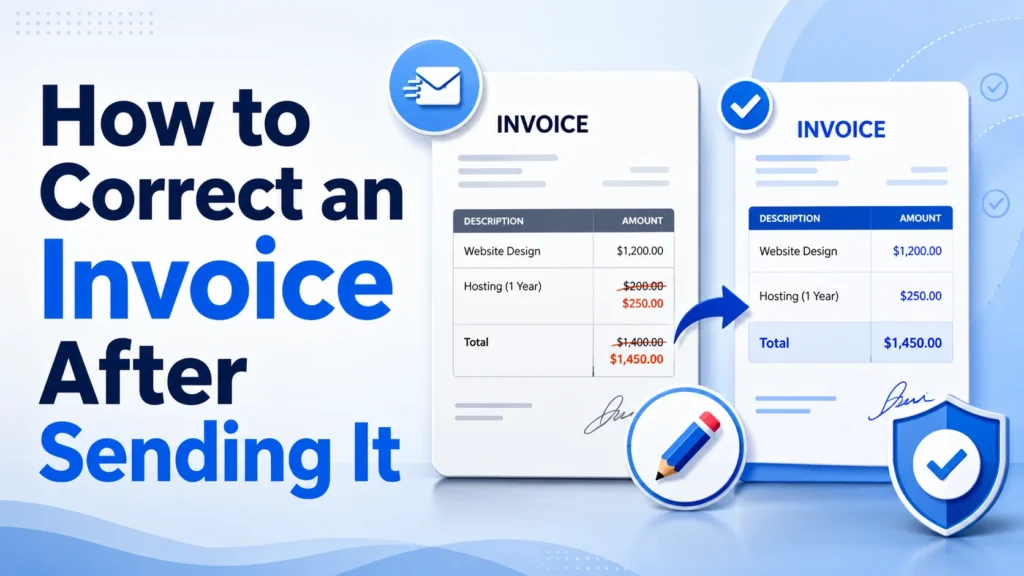
Even careful businesses sometimes discover mistakes after an invoice has been sent.
You might notice an incorrect customer name, missing service description, wrong quantity, or inaccurate tax calculation.
The correct way to handle the error depends on the nature of the mistake and the applicable invoicing rules.
Use this general approach:
- Identify the incorrect information.
- Contact the customer if the error affects the amount or payment terms.
- Determine whether a corrected invoice, replacement document, credit note, or supplementary invoice is required.
- Clearly reference the original invoice.
- Keep copies of the original and corrected documents.
- Update your payment and accounting records.
Do not silently edit an invoice that has already been issued and leave the customer with a different version.
For example, if you accidentally charge $700 instead of the agreed $600, explain the mistake and issue the appropriate correction. The original document should remain traceable.
Tax-specific corrections can involve additional requirements. For UK VAT invoices, HMRC provides guidance on correcting VAT errors and making adjustments through its VAT Notice 700/45.
Common Invoice Generation Mistakes to Avoid
Even a professionally designed invoice can create problems when important information is missing or inaccurate.
| Common mistake | Why it causes problems | Better approach |
| Missing invoice number | Makes transaction tracking difficult | Assign a unique reference |
| Incorrect customer name | May delay payment approval | Verify billing details |
| Vague service description | Creates questions about charges | Itemize completed work |
| Wrong calculations | Can lead to disputes | Recheck every amount |
| Incorrect tax rate | Can create compliance problems | Verify applicable tax rules |
| Missing due date | Creates uncertainty about payment | Include a specific deadline |
| Outdated payment details | May prevent successful payment | Verify account information |
| Duplicate invoice numbers | Makes records confusing | Maintain a consistent sequence |
| Sending to the wrong person | Invoice may remain unprocessed | Confirm the correct recipient |
| No record of sent invoices | Makes follow-up difficult | Maintain an invoice register |
Should You Add Tax to Every Invoice?
No. Tax should only be included when it applies to the particular transaction under the relevant tax rules.
Your obligations may depend on:
- Whether your business is registered for the relevant tax.
- What products or services you supply.
- Where your business operates.
- Where your customer is located.
- Whether an exemption or special treatment applies.
- The type of invoice required for the transaction.
For example, UK VAT invoices have specific requirements, and only VAT-registered businesses can issue VAT invoices.
What Should You Do After Generating an Invoice?
Your invoicing process should not end when you press send.
Good recordkeeping helps you identify outstanding payments, resolve disputes, and maintain an accurate transaction history.
A simple process includes:
- Save a copy of every issued invoice.
- Record its invoice number and issue date.
- Note the customer and amount billed.
- Track the payment deadline.
- Update its status when money arrives.
- Keep relevant payment confirmations.
- Issue an appropriate receipt or payment confirmation when necessary.
- Correct billing errors through the appropriate document, such as a credit note where required.
For businesses that issue invoices regularly, maintaining an invoice register is particularly useful.
| Invoice number | Customer | Amount | Due date | Status |
| INV-026 | Johnson Retail | $909.15 | Nov 15 | Pending |
| INV-027 | Smith Studio | $450.00 | Nov 20 | Paid |
| INV-028 | Green Media | $720.00 | Nov 25 | Pending |
This simple record makes it easier to identify unpaid invoices and follow up when necessary.
Record-retention periods vary by jurisdiction and document type. For example, HMRC provides specific recordkeeping guidance for VAT-registered businesses in the UK. Check your local requirements rather than assuming one universal retention period.
Conclusion
Generating an invoice does not have to be complicated. Whether you are a freelancer, consultant, contractor, or small-business owner, the essential process is the same: identify the customer, describe the products or services supplied, assign a unique invoice number, calculate the charges correctly, and explain how and when payment should be made. A well-prepared invoice reduces confusion, supports accurate bookkeeping, and gives customers the information they need to process payments.
You can create one using a simple template, spreadsheet, document editor, online invoice generator, or suitable accounting software. Before sending your next invoice, check the customer details, calculations, applicable tax information, and payment instructions. One final actionable tip: Maintain a consistent invoice register so you can track every document from issue to payment. A common mistake to avoid is treating a generated PDF as automatically tax-compliant. Always check the invoicing rules that apply to your business and location.
Frequently Asked Questions
Q1. Can I generate an invoice for free?
Yes. You can create a basic invoice using a word processor, spreadsheet, or free invoice template. Some online invoice generators also provide free features. Check whether the chosen method supports your required calculations, document format, and tax fields before using it for business transactions.
Q2. Can I generate an invoice without having a registered company?
In many jurisdictions, freelancers and sole traders can issue invoices without forming a limited company. However, registration, tax identification, and invoicing requirements depend on local laws and business circumstances. Check the rules applicable to your location before issuing invoices commercially.
Q3. How do I generate an invoice for a client?
Collect your business and client details, assign a unique invoice number, describe the completed work, list the charges, calculate applicable taxes, and add the payment deadline and instructions. Review the document before sending it to the correct billing contact.
Q4. What is the easiest way to generate an invoice online?
An online invoice generator is often a convenient option for straightforward billing. Enter your business and customer details, add products or services, review the calculations, and generate the document. Check that the tool supports your required currency, tax fields, and document format.
Q5. Should I send an invoice as a PDF or Word document?
PDF is generally a convenient choice because it preserves the document’s formatting across different devices. A Word document is useful when the recipient needs to edit or process the information. Follow the customer’s preferred submission format and any applicable electronic-invoicing requirements.
